
 Client Support
Implementation Guide
Everything you need to get your program live — five setup steps that apply to every client, plus the advanced features, day-to-day tasks, and reference material behind them.
Use this alongside your onboarding call
Review it before, during, or after your training session. Book a time that suits you and a Client Success Manager will walk through setup with you — nothing here replaces that conversation.
Sign in to your admin account
Administrators work in the web admin panel, not the volunteer app. Go to admin.helperhelper.com — or visit helperhelper.com and click Sign In — then sign in with the temporary password we emailed you. Your username is your email address. You will be asked to set your own password the first time you sign in.
Getting Started
Once you are signed in, these five steps come next, in order. Every client does them — a small nonprofit and a 40-school district follow the same path.
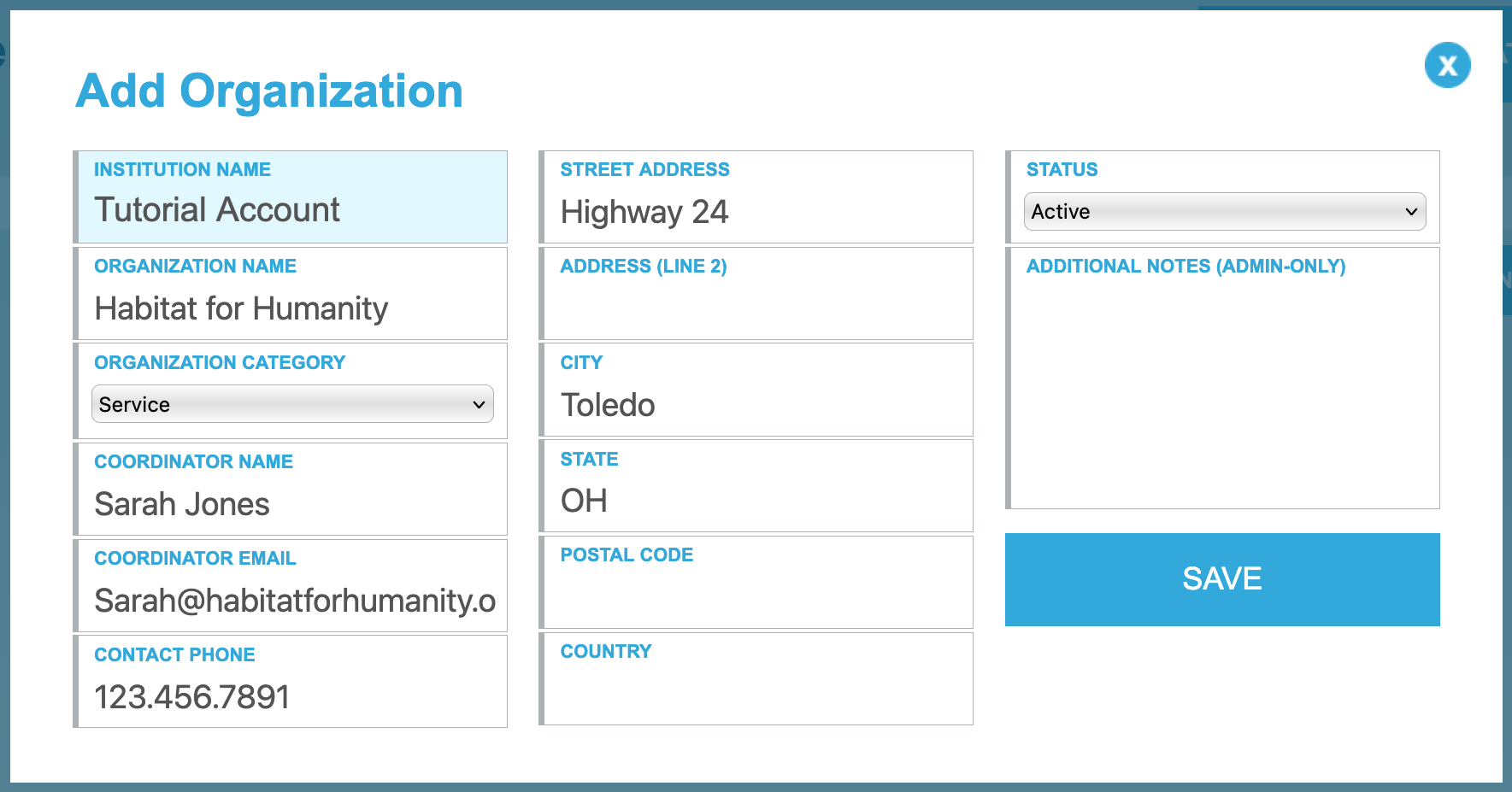
Add an Organization
An Organization is the community partner you volunteer with — the food bank, the animal shelter, the elementary school hosting your tutors. Opportunities are always attached to one.
This is not your own internal structure. Your schools, departments, grade levels, and clubs are set up as Branches & Teams instead.
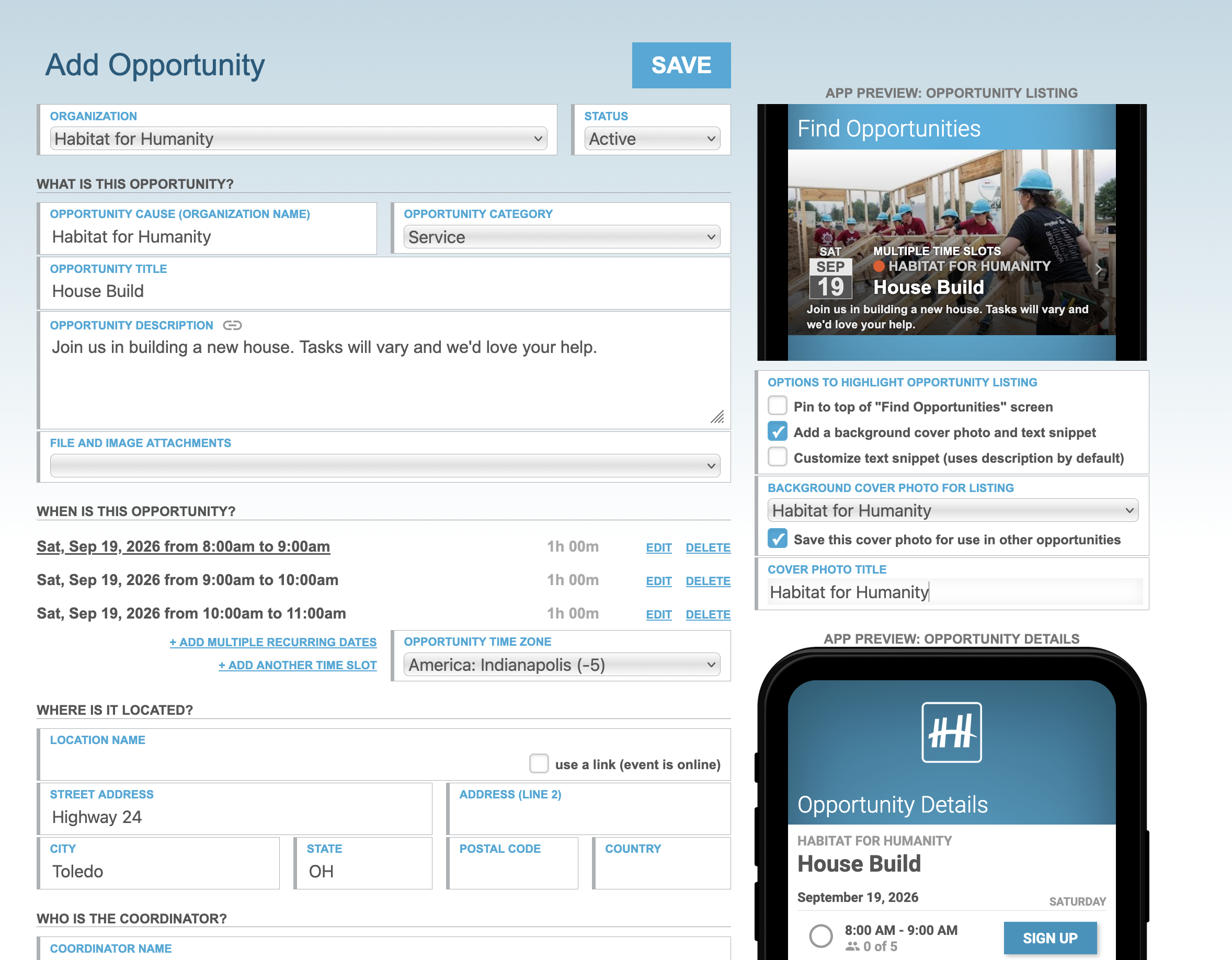
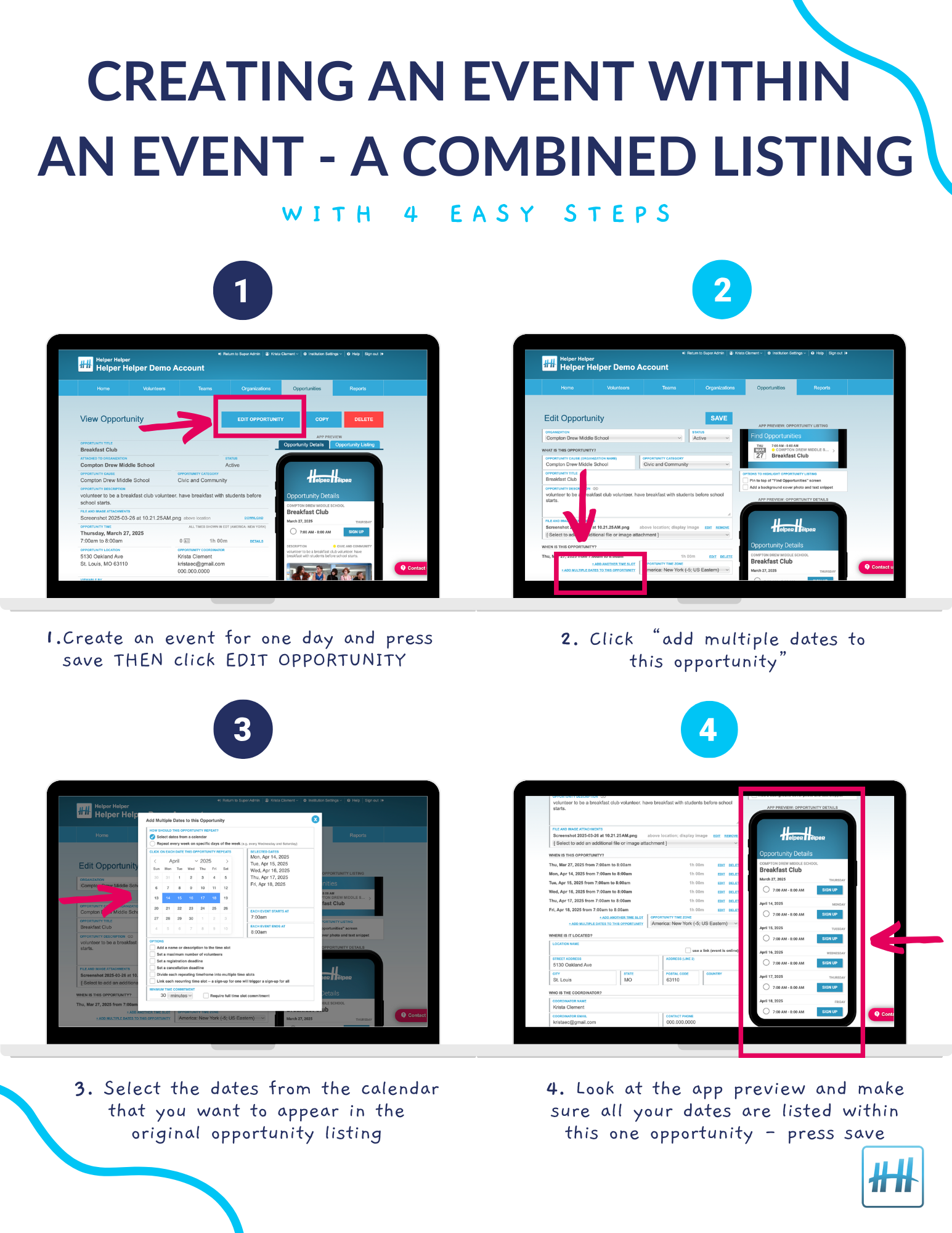
Create an Opportunity
Post the event volunteers sign up for: date, time slots, capacity, location, and category. Add a featured image or a waiver PDF so volunteers know what to expect before they commit.
Upload Volunteer Roster
Four columns is all we need: Email, First Name, Last Name, Team. Start from the template below so there is no guessing about format.
| First Name | Last Name | Team (optional) | |
|---|---|---|---|
| jane.doe@yourschool.org | Jane | Doe | Class of 2027 |
Leave Team blank if you are not using Teams yet — you can add them later. Nonprofits who let volunteers register themselves can skip the roster entirely and use Volunteer Profiles instead.
Next year, upload the full roster again. Uploading your complete current roster adds every new volunteer and inactivates anyone who has left, in one pass — you do not need to remove people by hand.
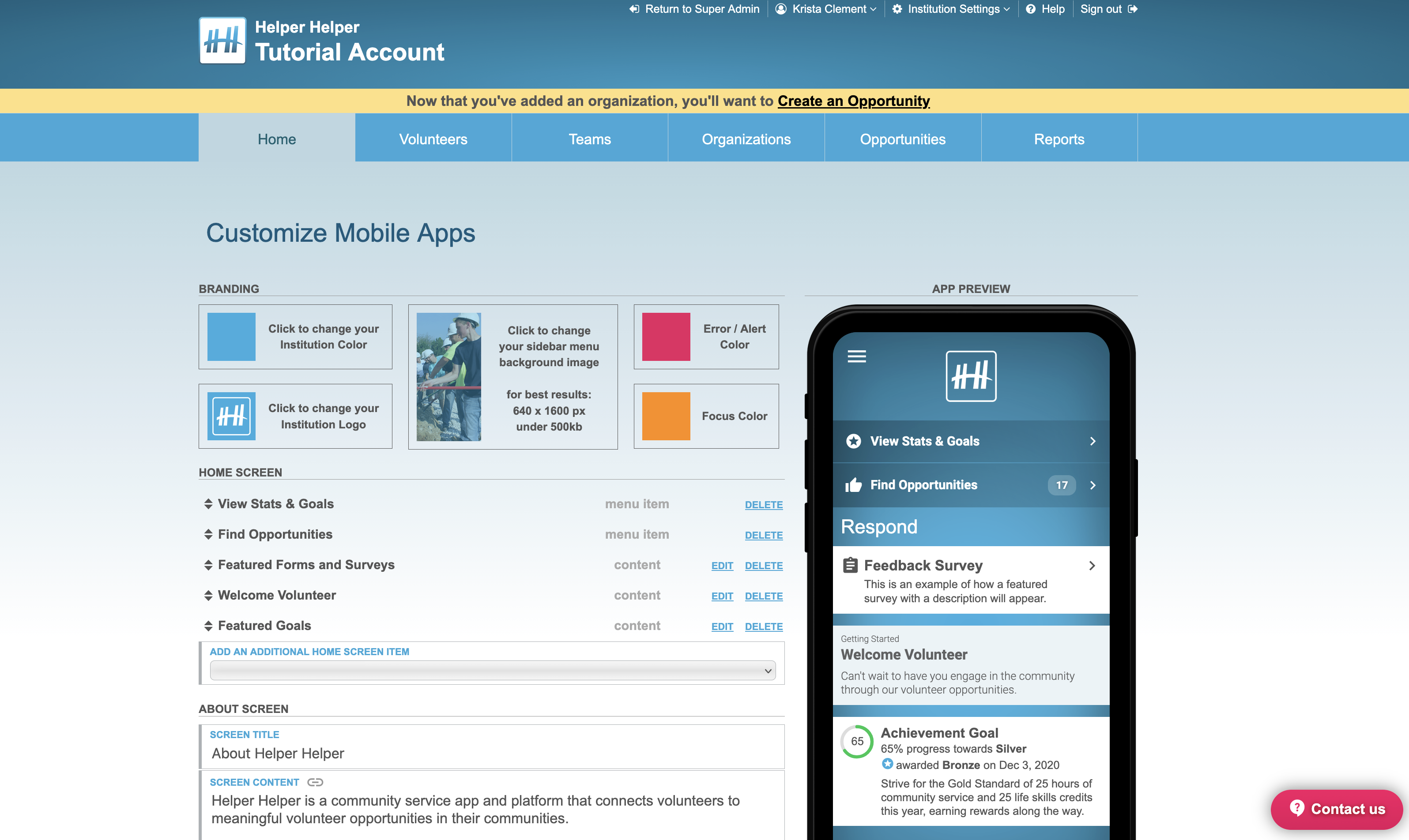
Customize Mobile App
Add your logo, set your colors, and choose what volunteers see when they open the app. Your program should look like your program on day one.
Invite Volunteers to Participate
This is the step people worry about, and it is the simplest one. Once your opportunities exist, you invite volunteers by email straight from the roster you uploaded. Helper Helper does the rest.
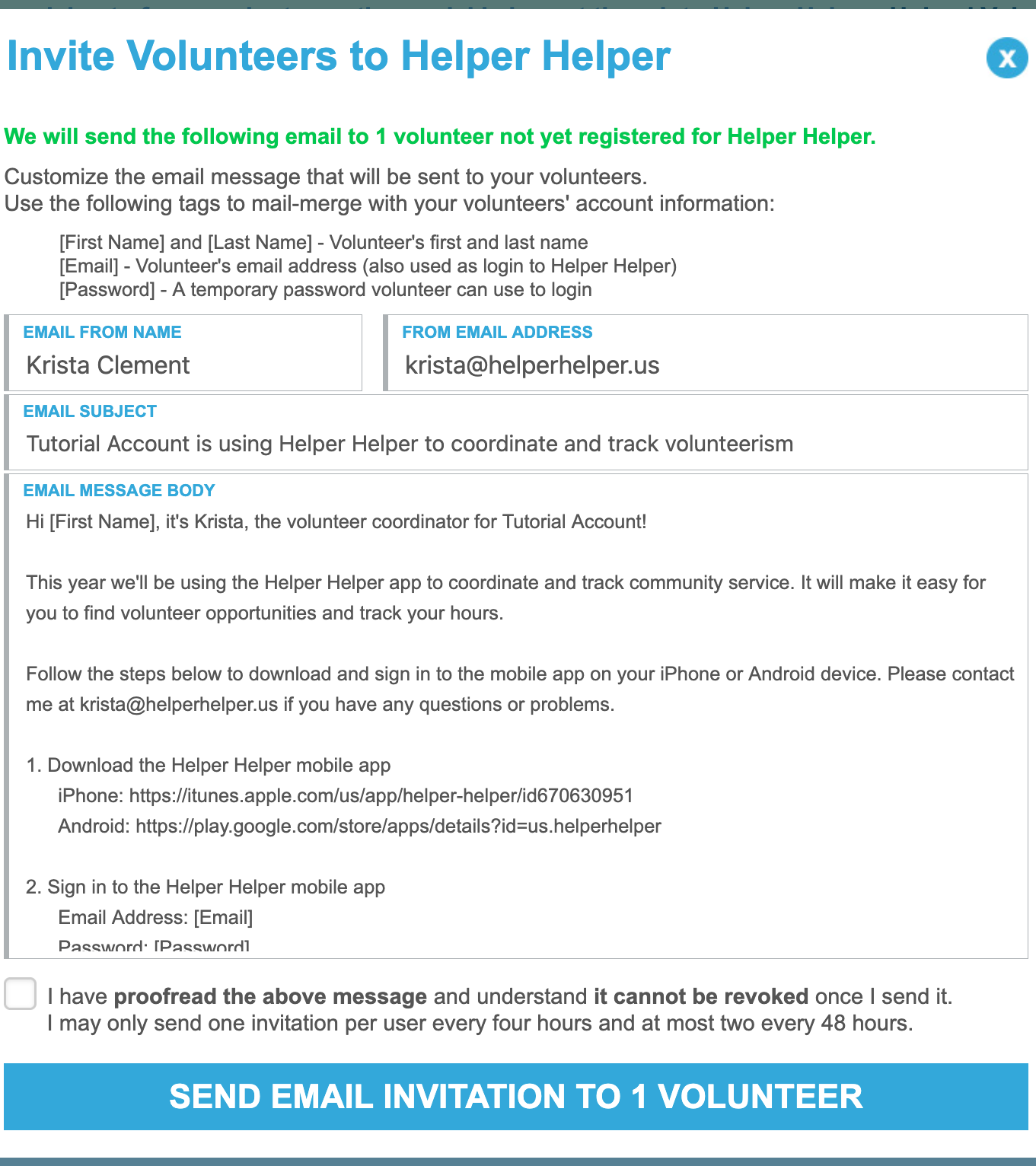
[First Name], [Email], and [Password] fill in per volunteer. Invitations cannot be revoked once sent, so proofread before you confirm. Tap the image to view it full size.Using single sign-on? Volunteers skip the username and password entirely and log in with the school or work credentials they already have. See SSO integration
Also set your verification settings here
Decide how attendance gets confirmed — QR check-in, coordinator check-in links, or a signature at the event. High schools: this is also where you enable students to self-report outside events, which are then sent to the nonprofit’s email for approval before the hours count.
Advanced Setup
These four features depend on how your program is shaped. They are documented here so you know what exists — your Client Success Manager configures them with you.
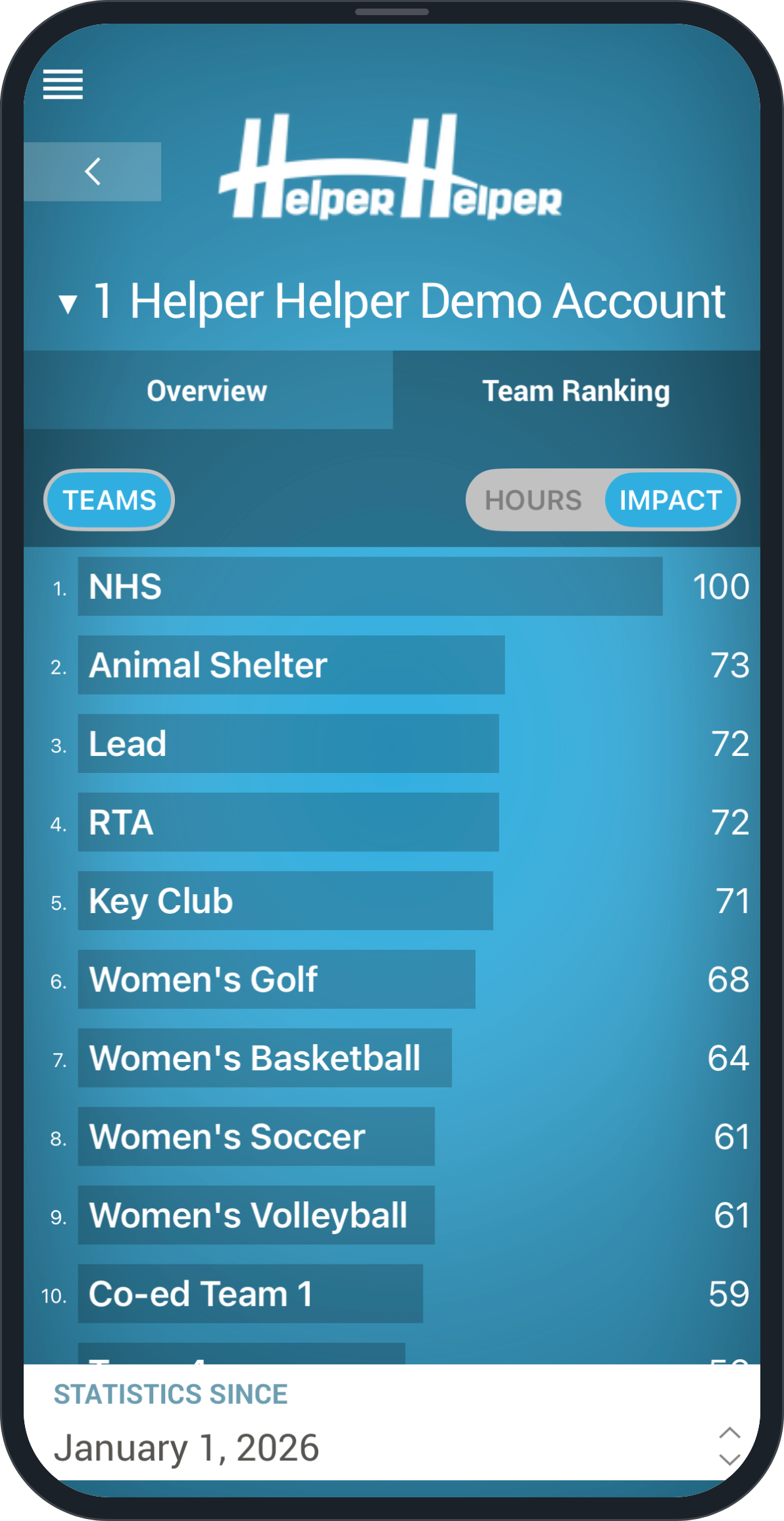
Branches & Teams
Who uses it: multi-site clients — school districts, athletic departments, universities with many colleges.
A Branch is one school or site. Each branch can have its own timezone and its own Branch Admin, who manages everything underneath it. Teams are sub-groups inside a branch — grade levels, clubs, sports, cohorts.
Volunteer Profiles
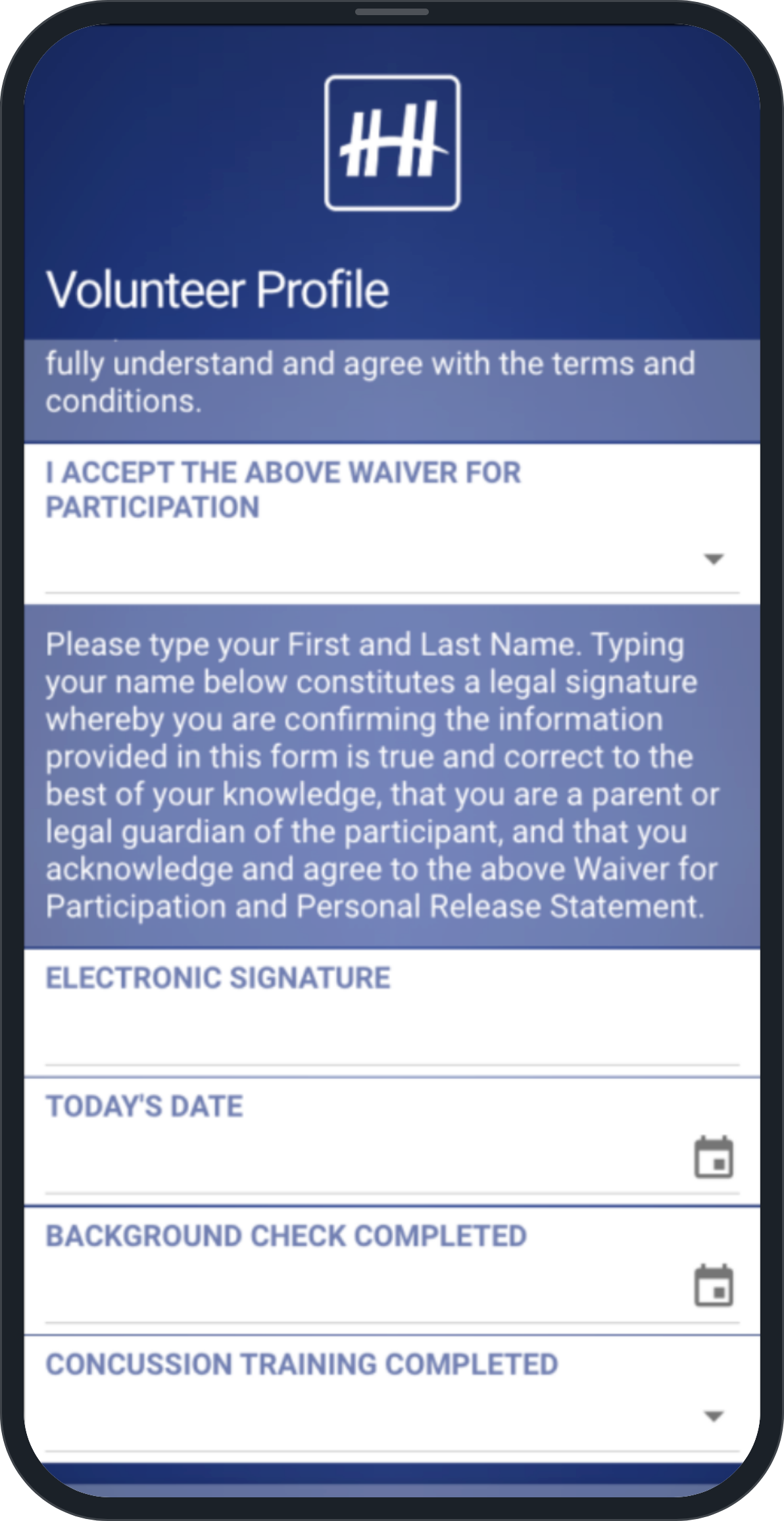
Who uses it: primarily nonprofits, and anyone who isn’t uploading a pre-built roster.
Collect the information you need at the moment a volunteer registers themselves — birthday, signed waiver, skills, shirt size, or any custom question you want to ask.
Surveys
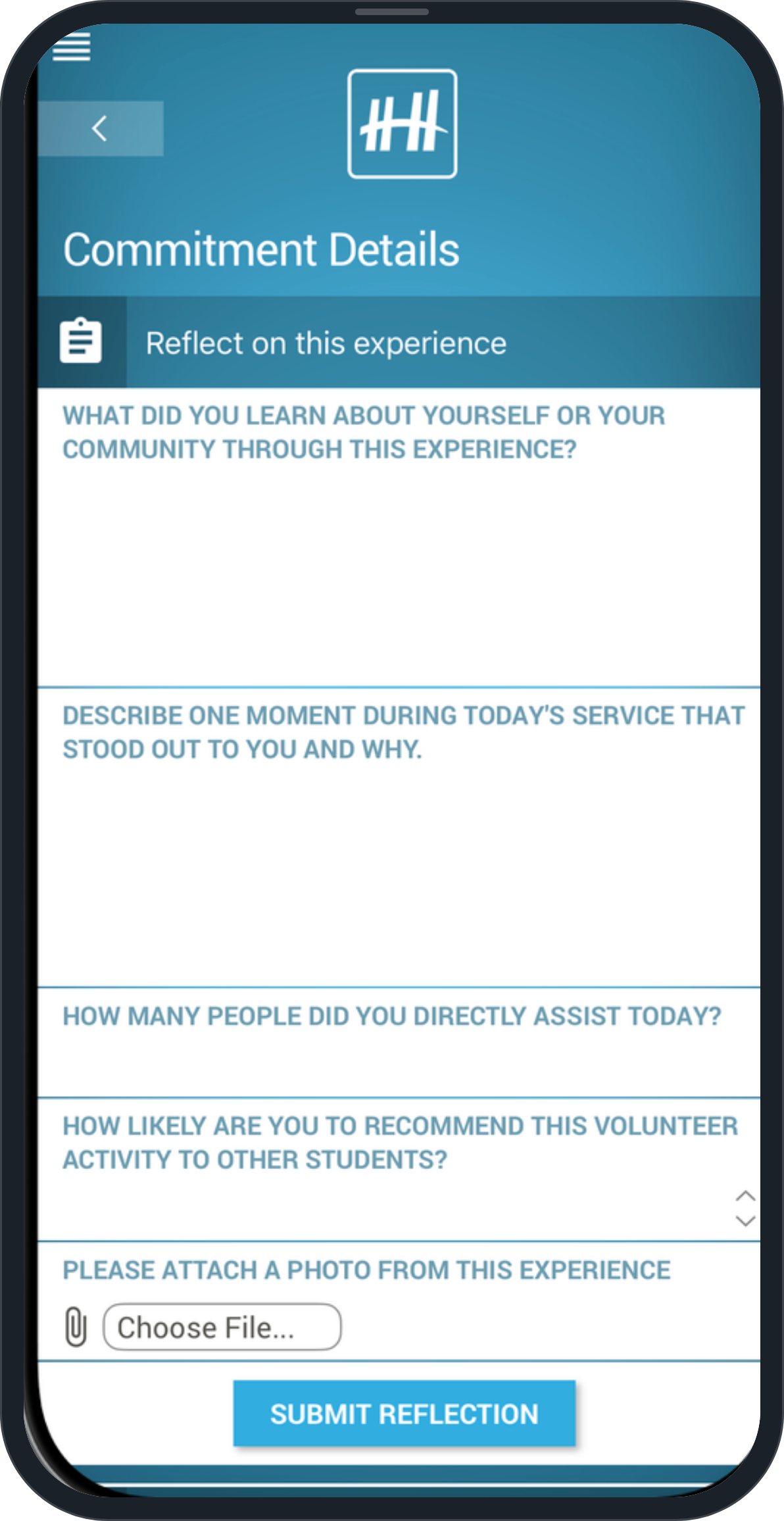
Who uses it: service-learning programs and anyone who needs reflections or pre-event information.
Attach custom questions to a specific event or opportunity. You control whether they appear before the event, after it, or both.
Goals
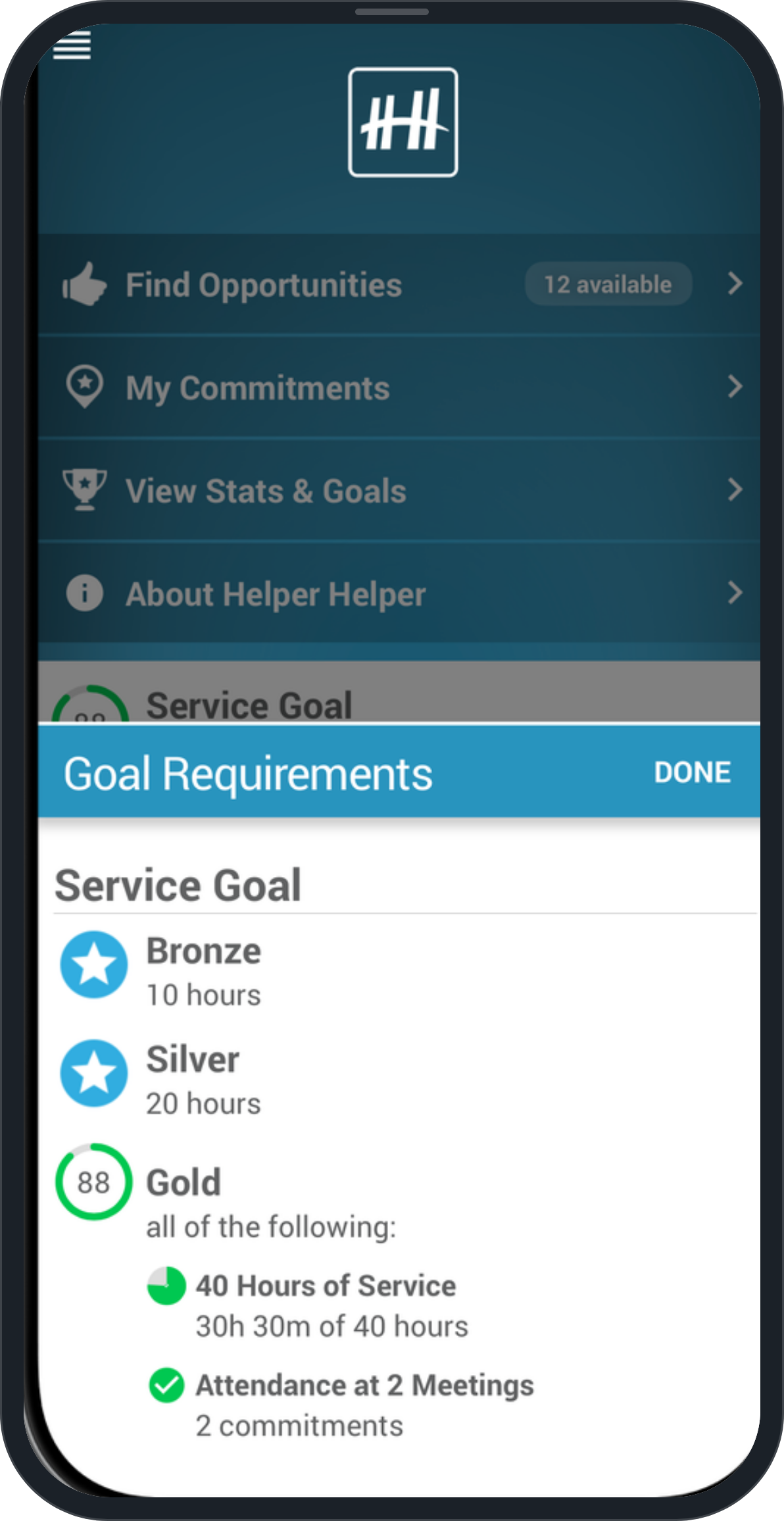
Who uses it: programs with a requirement — NHS chapters, Silver Cord, athletic service targets.
Set hour or participation targets for a group or an individual. Progress updates the moment service is approved, on the admin side and in every volunteer’s app.
Ongoing Management
Short walkthroughs for the tasks that come up once your program is running.
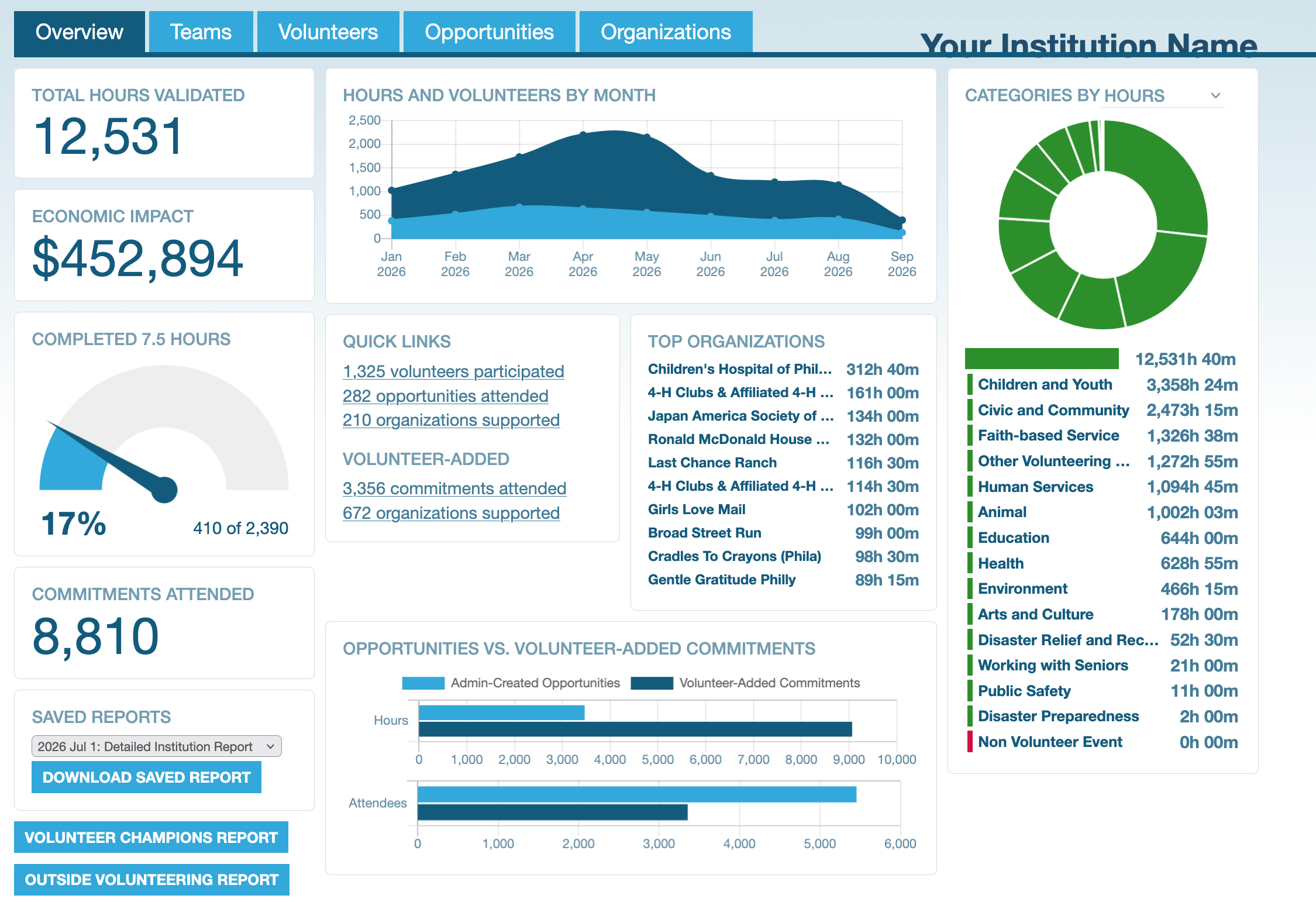
Read your Reports
Your dashboard updates as hours are validated — check it before board meetings, annual reports, and budget season.
Resources
Every tutorial, PDF, poster, and feature page in one place.
Tutorials by role
Not sure which admin role someone needs? Start with the comparison chart.
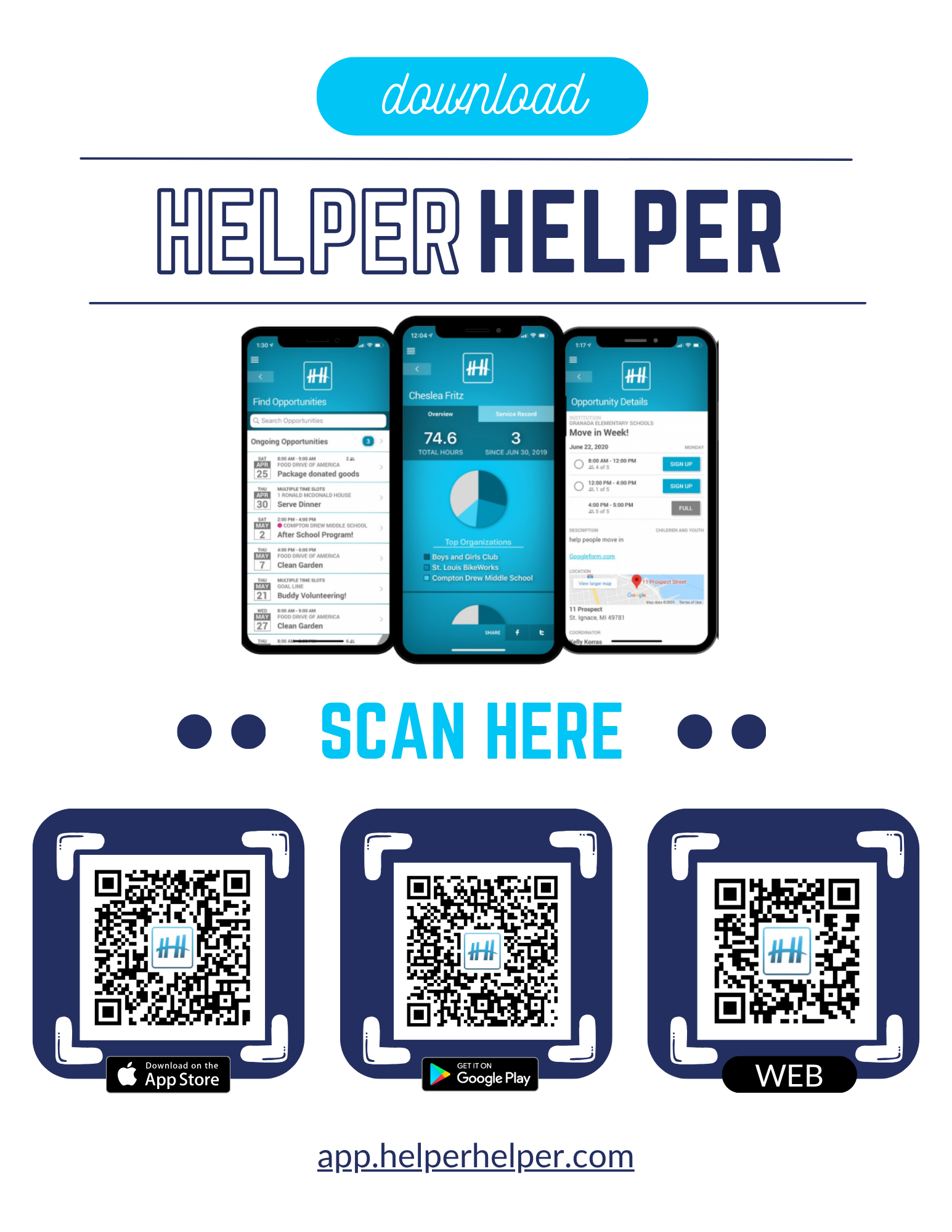
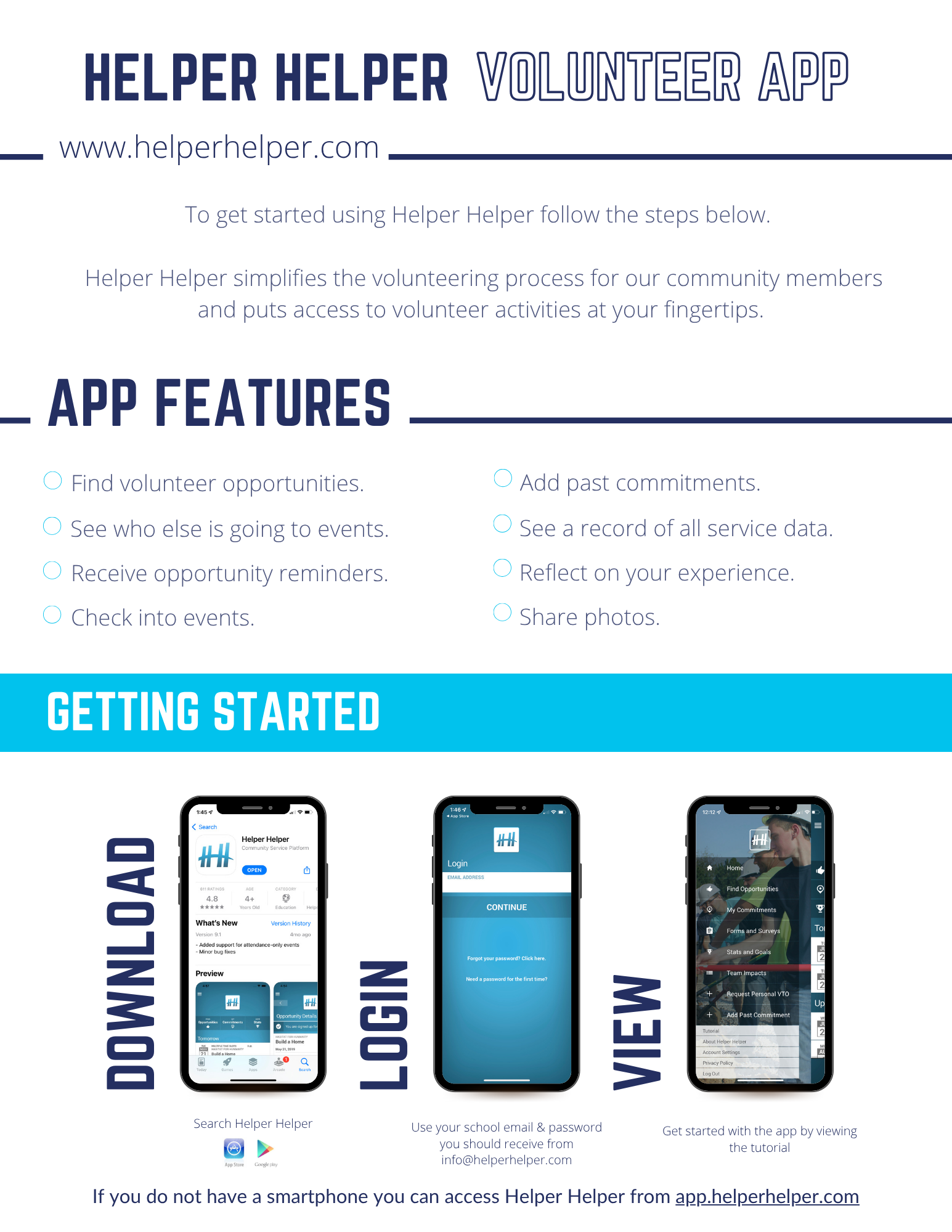
Printable posters
Print and hang these to let volunteers know Helper Helper is how you track service. Letter size.
Feature reference
One page per feature, for when you want the detail on something specific.
Still have a question?
Our Client Success team answers the same day — no chatbots, no ticket queues. Bring your setup questions to your training session, or email us any time.